AIDIN Tactile Sensor ATT (ENG)
Rev. 2025.12.01
FOREWORD
Thank you for purchasing our AIDIN Tactile Sensor. This manual contains the information necessary for the correct use of the AIDIN ROBOTICS Tactile Sensor.
Please carefully read this manual when using this software.
Please note that the basic performance of the product will not be exhibited when the robot system is used outside the specified conditions.
This manual describes possible dangers and consequences of using the tactile sensor. Be sure to comply with the safety precautions written in this manual to use the sensor safely and correctly.
NOTICE
This manual may NOT be copied, reproduced or shared without the authorization of AIDIN ROBOTICS.
Please notify us of any errors in this manual or the provided instructions.
MANUFACTURER
AIDIN ROBOTICS
SAFETY PRECAUTIONS
Installation of the tactile sensor MUST be performed by qualified personnel in accordance with national and local codes. Please carefully read this manual when using this software.
WARNING & CAUTION
[!CAUTION] This symbol indicates that a danger of possible serious injury or death exists if the associated instructions are not followed properly.
[!WARNING] This symbol indicates that a danger of possible harm to people or physical damage to equipment and facilities exists if the associated instructions are not followed properly.
1. Introduction
1.1 AIDIN Tactile Sensor, ATT Sensor
1.2 Key Features
- AIDIN Tactile Sensor
- All-in-one sensor (no additional amplifier)
- Digital output communications (CAN, etc.)
- Easy installation and data collection
- Applications: grippers, robot hands, collaborative robots, industrial robots
1.3 Specifications
| Index | Unit | Value | Note |
|---|---|---|---|
| Operating voltage | VDC | 5 | |
| Max. safe excitation voltage | VDC | 12 | |
| Nominal force range | N | 30 | |
| Force resolution | mN | 6 | |
| Dimensions | mm | 25.89(L) x 16(W) x 15.7(H) | |
| Sampling rate | Hz | 100 | |
| Interfaces | - | CAN | |
| Wire | - | CAN_H / CAN_L / VCC / GND | |
| Connector | - | Open-end wire | 4 pin |
| Number of sensing cells | Cells | 7 | |
| Data size | byte | 24 | |
| Data output (No. of ID) | - | 3 | CAN |
2. Installation Guide
2.1 Basic Components
- AIDIN Tactile Sensor x 1 EA
2.2 Drawings
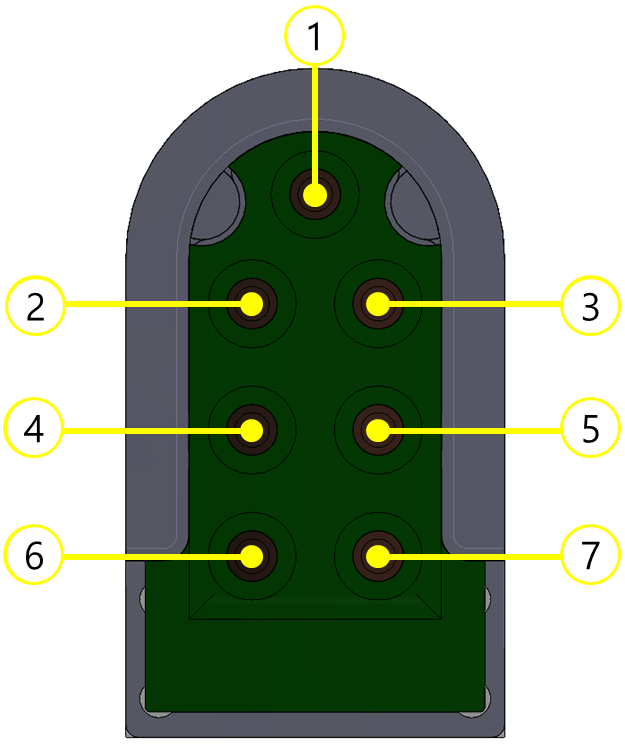

Drawing files:
2.3 Wiring
Cable open-end
- Cable pin out
- For user: CAN_L / CAN_H / VCC / GND (4 pin)
- 1 : NC
- 2 : CAN_L : green
- 3 : CAN_H : blue
- 4 : 5V : red
- 5 : GND : black
- 6 : NC
- For user: CAN_L / CAN_H / VCC / GND (4 pin)
[!NOTE] Other pins are not used.
Connection PCB installation guide
- Insert the wires as illustrated below and fasten the bolts on the terminals.
- Each connection point is marked on the PCB, and the sequence is as follows:
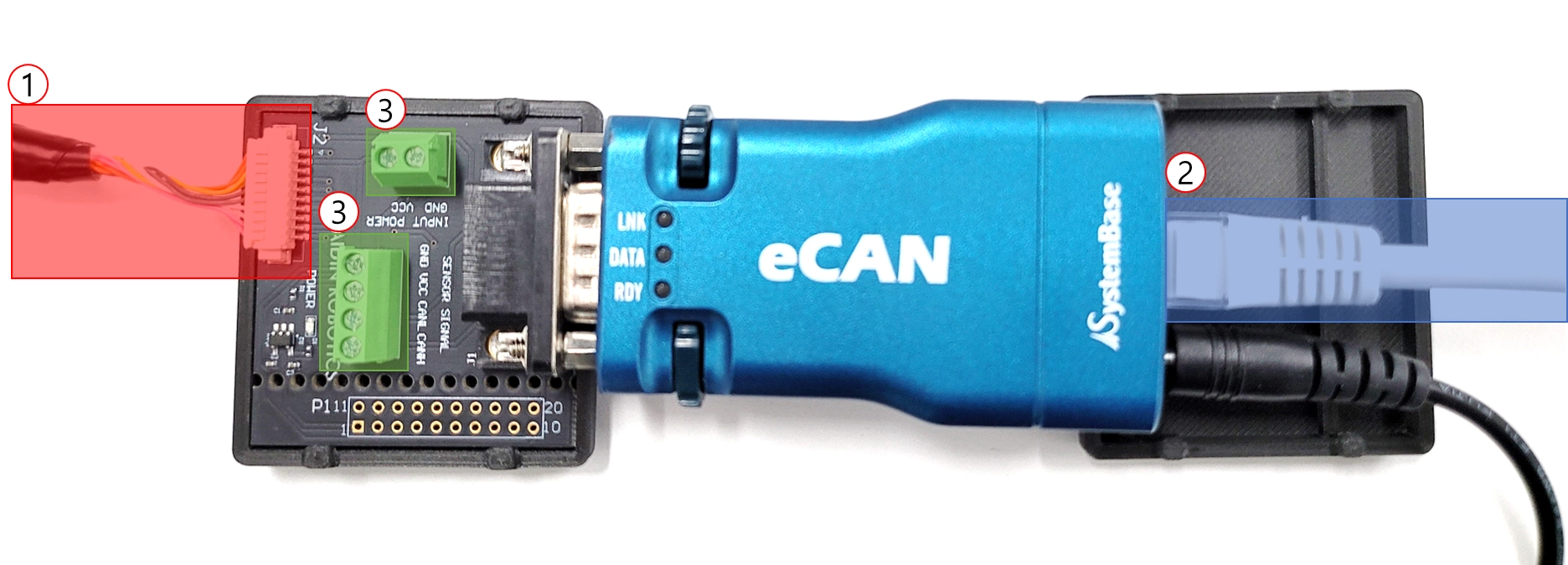
- Sensor connector (connector section connecting to the sensor)
- EtherNET connector (connector section connecting to the PC)
- Sensor connector
- Upper 2-port terminal block: VCC, GND
- Lower 4-port terminal block: VCC, GND, CAN High, CAN Low (Optional)
- VCC and GND should be connected to a power supply providing a stable 5 V.
- The 9-pin D-sub is connected to the eCAN device.
[!CAUTION] We recommend using an approved power supply device.
2.4 Default Data Output Rate
- Output rate: 100 Hz
- CAN-2.0
- Nominal bitrate : 1Mbps
- Data bitrate : 1Mbps
- RX ID MASK : 0x01~
[!NOTE] To stabilize the sensor signal, a running time of about 30 minutes is recommended. Please leave the sensor data output on for at least 10 minutes before use. Sensor output data may drift during the first 10 minutes.
2.5 Output Data Casting and Parsing
Two byte mode
| ID | DLC | data[0] | data[1] | data[2] | data[3] | data[4] | data[5] | data[6] | data[7] |
|---|---|---|---|---|---|---|---|---|---|
| 0x01 | 8 | F01(MSB) | F01(LSB) | F02(MSB) | F02(LSB) | F03(MSB) | F03(LSB) | F04(MSB) | F04(LSB) |
| 0x02 | 8 | F05(MSB) | F05(LSB) | F06(MSB) | F06(LSB) | F07(MSB) | F07(LSB) |
- Fxx Output = Fxx(MSB)*256 + Fxx(LSB)
[!NOTE] The final calculated Fxx Output values need to be cast into 16-bit integers.
2.6 Devices
USB-to-CAN device
- You may use a different CAN-enabled board, but use IXXAT's converter to use the sample program.
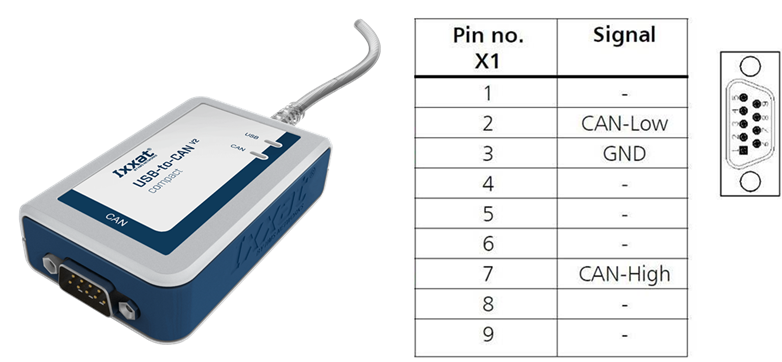
- USB-to-CAN V2 (ixxat.com), version used in this manual: 1.01.0281.11001
- Downloads and Documentation for Ixxat Products, VCI V4 - Windows 11, 10, 8, 7 (Driver, canAnalyser-Mini, Manuals, LabVIEW and other add-ons)
- Ixxat VCI Setup 4.0.xxx.0.exe
[!NOTE] Check VCI V4 during installation and reboot the PC after installation.
3. Software
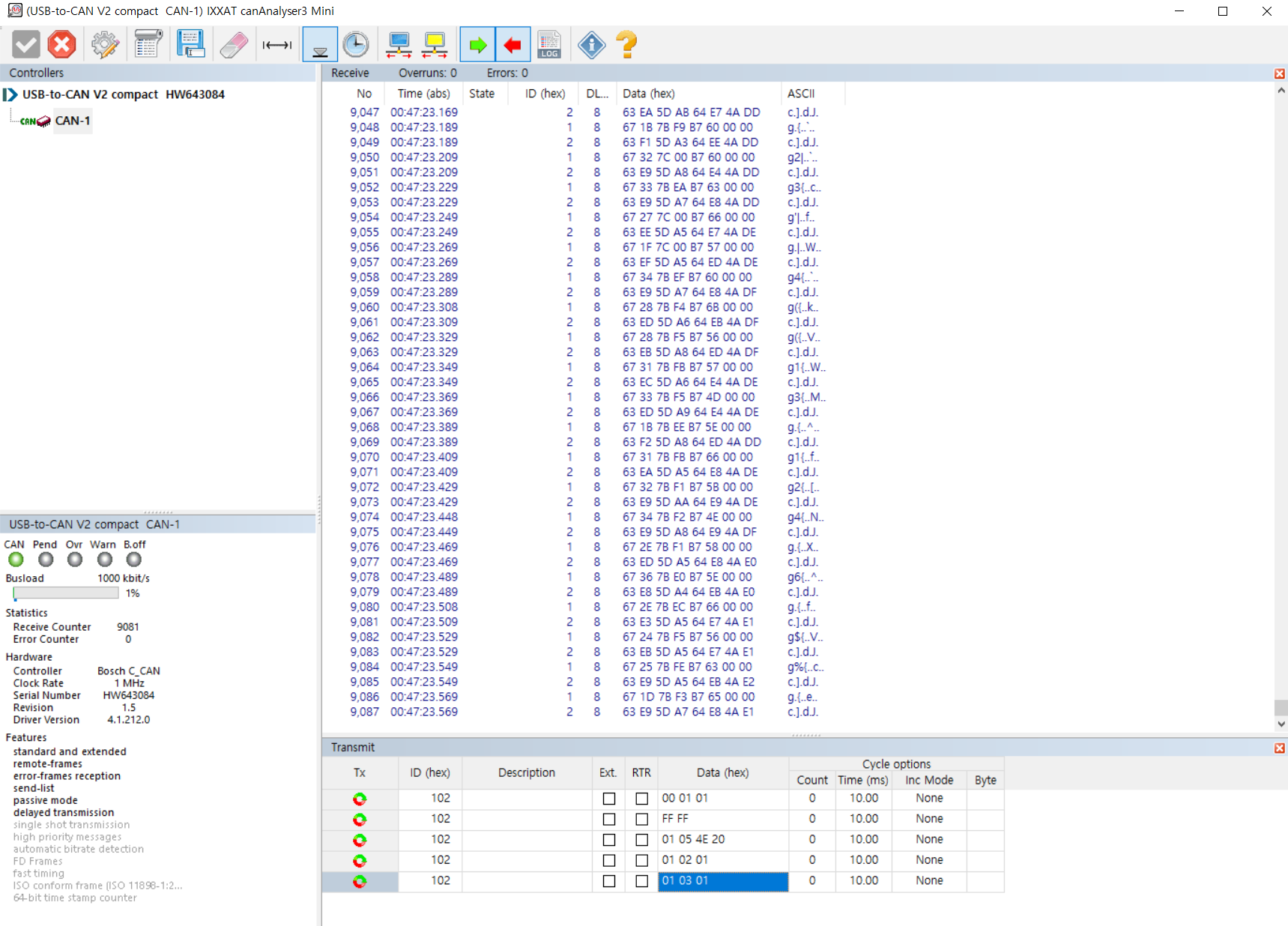
3.1 IXXAT's USB-to-CAN
- Sample program (provided by IXXAT)
- CanAnalyzer3 Mini: Windows → IXXAT folder → IXXAT CanAnalyzer3 Mini
3.2 Sample Program Provided by AIDIN ROBOTICS
- Install IXXAT CAN VCI V4 first.
- Sample program
- Run Tactile SAMPLE.exe after installation.
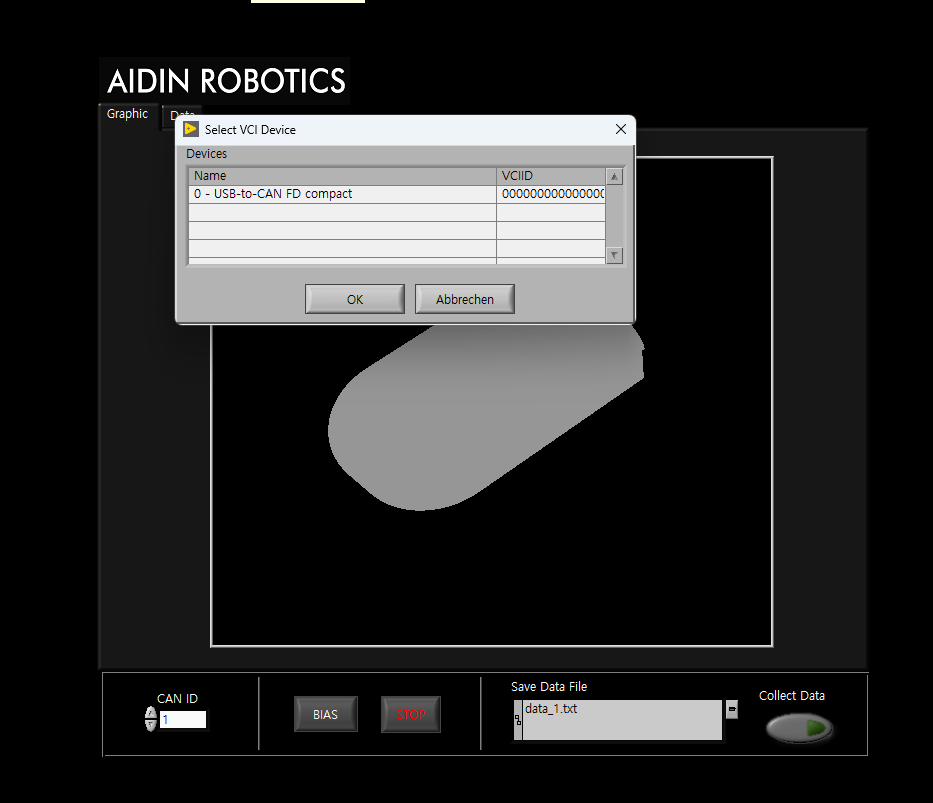
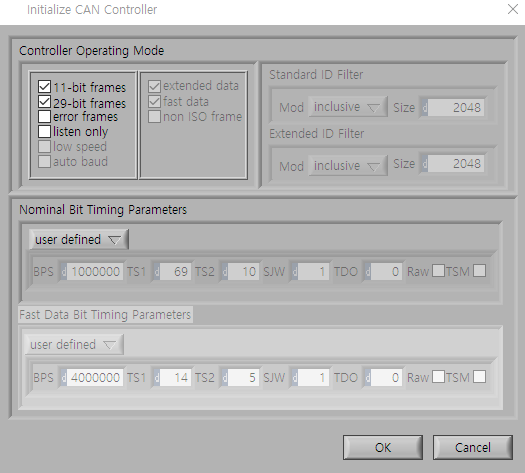
Pop-up screens when running the sample program
1. CAN Device Selection
Select a device. Devices currently connected to your PC appear as a list. Click the appropriate device and press the OK button.
※ The sample program is based on IXXAT's USB-to-CAN converter.

2. CAN Controller Selection
Displays the device name selected in the previous step. Select the controller channel below and press the OK button.

3. CAN Controller Initial Setup
Initializes the controller selected in the previous step. Check the frame and baud rate and press the OK button.
Sample program interface description
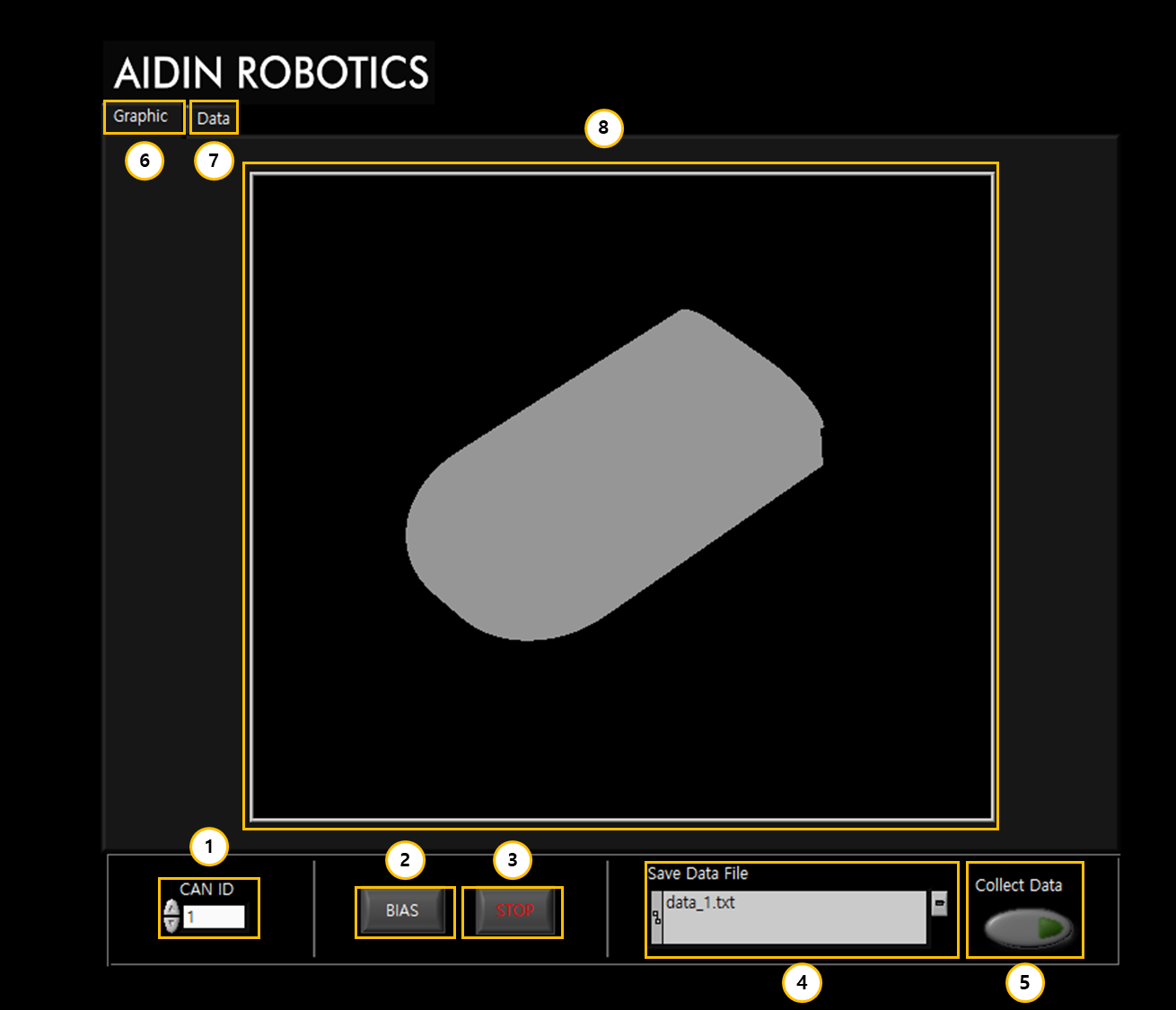
① CAN ID
Mode for changing the CAN ID.
② BIAS
Zeroes all cell values of the sensor. Please perform this zeroing operation before starting to use the device.
③ STOP
Exits the program. Press both STOP buttons and the program will exit after 3 seconds.
④ Save Data File Path
Sets the path for storing tactile sensor data logs. Please refer to "3.3 Save Data Log" below.
⑤ Collect Data
Saves the tactile sensor data log. Please refer to "3.3 Save Data Log" below.
⑥ Graph tab
When this tab is enabled, the tactile sensor data is displayed as a 3D heatmap. Based on the variation of cells 1 to 7, larger changes are gradually visualized in red to indicate increased activity.
⑦ Data tab
When this tab is enabled, the sensor data is displayed as two separate graphs, each showing the 7 cell values.
⑧ Visualization
3D visualization view. The applied force is represented by a gradual change toward red, indicating higher pressure.
3.3 Save Data Log
- Save directory settings: Click the folder button to open a pop-up window. Select a file (.txt) in the desired directory and press the OK button. Check the path shown in Path. If the specified file does not exist in that path, it is created automatically.
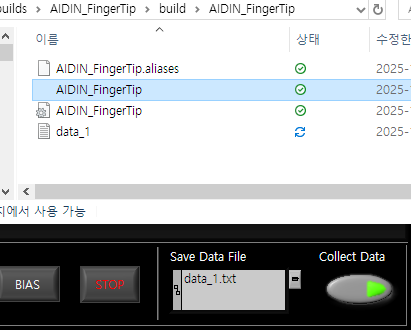
- Saving the data log: Press the button under Collect Data to start saving. While saving, the button is displayed in a fluorescent color. Press the button again to stop saving. Data is stored cumulatively in the file, so it is recommended to specify a new file for each save.

- Checking the data log: Open the file in the specified directory to view the stored tactile sensor data. The data are stored in columns in the order of cells 1 to 7.
Revision History
| Date | Description |
|---|---|
| 2025.12.01 |