Joint Torque Sensor ATSB Series (ENG)
Rev. 2026.04.29
1. Introduction
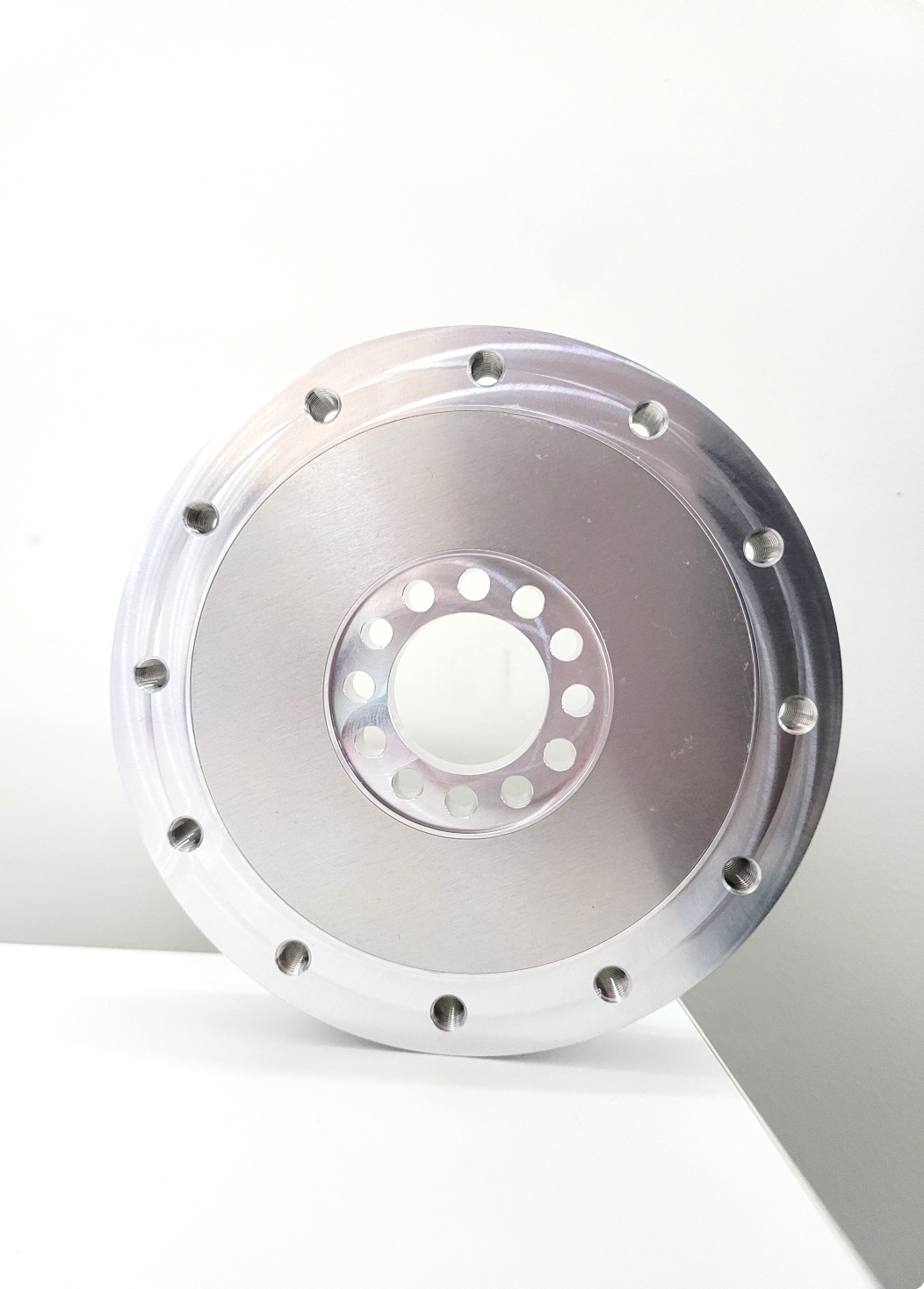
1.1 Joint Torque Sensor, ATSB Series
1.2 Key Features
- Ultra-thin torque sensor
- All-in-one sensor (no additional amplifier)
- Dual-channel output available for safety
- 300% overload capacity
- Digital output communications (CAN)
- Easy installation and data collection
- Applications: collaborative robots, industrial applications, automation
1.3 Specifications
| Index | Unit | ATSB 50 | ATSB 100 | ATSB 200 | ATSB 400 |
|---|---|---|---|---|---|
| Operating voltage | VDC | 5 | 5 | 5 | 5 |
| Max. safe excitation voltage | VDC | 10 | 10 | 10 | 10 |
| Nominal torque range (TN) | Nm | 50 | 100 | 200 | 400 |
| Overload (related to TN) | % | 300 | 300 | 300 | 300 |
| Resolution | Nm | 0.01 | 0.015 | 0.025 | 0.05 |
| Noise-free resolution (STD) | Nm | 0.03 | 0.05 | 0.1 | 0.2 |
| Dimensions | mm | D84 x H14 | D100 x H16 | D100 x H18 | D120 x H20 |
| Weight | g | 120 | 190 | 210 | 310 |
| Sample rate | Hz | 1,000 | 1,000 | 1,000 | 1,000 |
| Temperature | ℃ | 10-50 | 10-50 | 10-50 | 10-50 |
| Interfaces | CAN (2.0 A/B) | CAN (2.0 A/B) | CAN (2.0 A/B) | CAN (2.0 A/B) | |
| Connector | 4 PIN VCC / GND / CAN_H / CAN_L | 4 PIN VCC / GND / CAN_H / CAN_L | 4 PIN VCC / GND / CAN_H / CAN_L | 4 PIN VCC / GND / CAN_H / CAN_L |
1.4 Flyer
2. Installation Guide
2.1 Components
- Torque sensor x 1 EA
- No separate components required other than special orders (integrated cable)
2.2 Mounting
- Each bolt must be tightened with the appropriate torque.
- If the sensor's own bolts are disassembled, performance is not guaranteed and A/S is not available.
- Be careful of cable cutting and excessive pulling.
- The lower fastening part is a counterbore, and the upper fastening part is tapped.
- Example of torque sensor connection (the part connected to the top is recommended to be at least 10t thick)
- Do not apply pressure to the upper and lower covers.
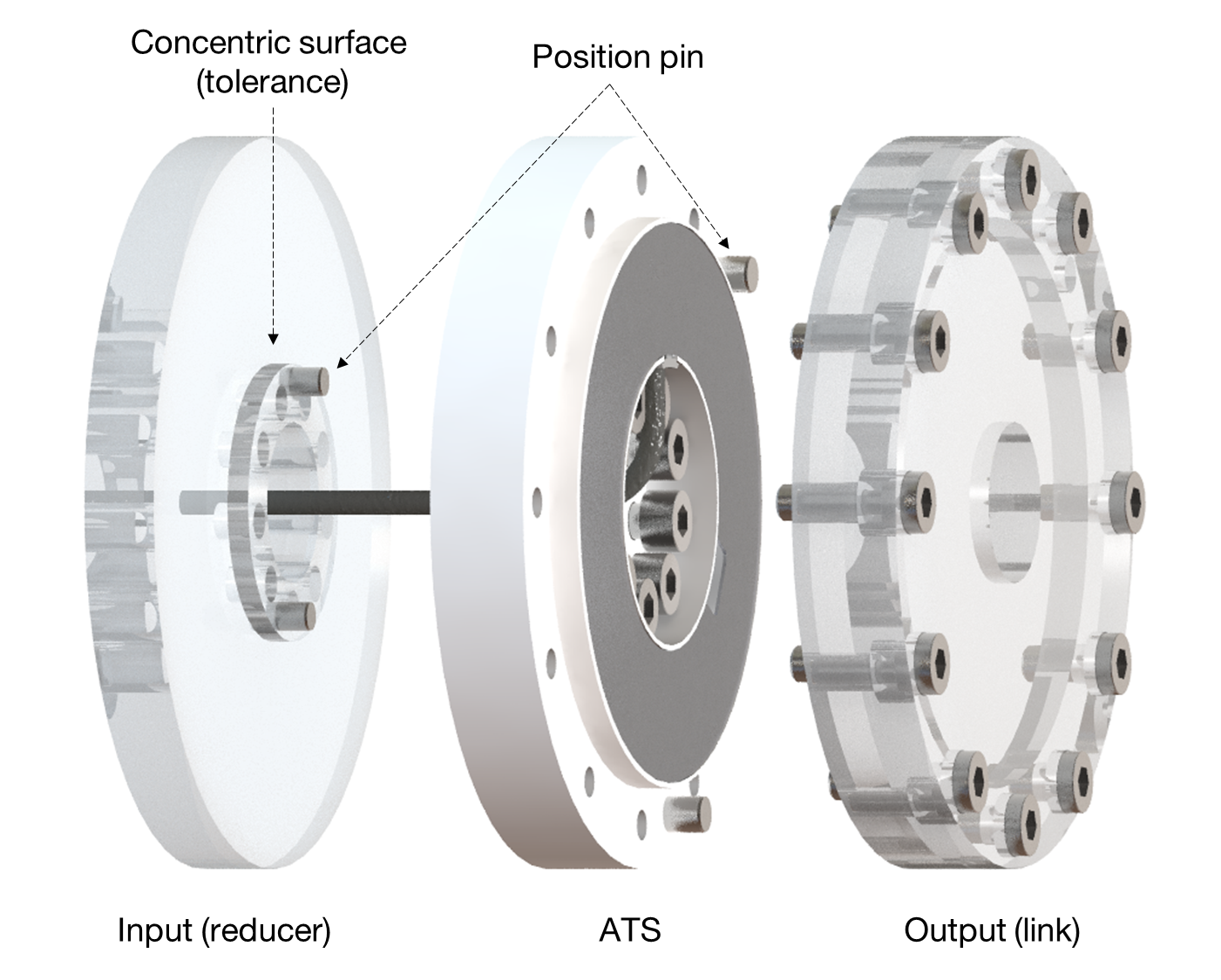
- Appropriate tightening torque for each bolt
| Bolt | Tightening torque | Torque wrench example |
|---|---|---|
| M3 | 20 kgfcm | 100QL-MH, 50QL-MH |
| M4 | 45 kgfcm | 100QL-MH, 50QL-MH |
| M5 | 75 kgfcm | 100QL-MH, 150QL-MH |
| M6 | 120 kgfcm | 150QL-MH, 225QL-MH |
[!NOTE] If the tightening torque is not observed, data may not be output properly. We recommend tightening with the appropriate torque using a torque wrench.
2D drawings
- ATSB50-D84
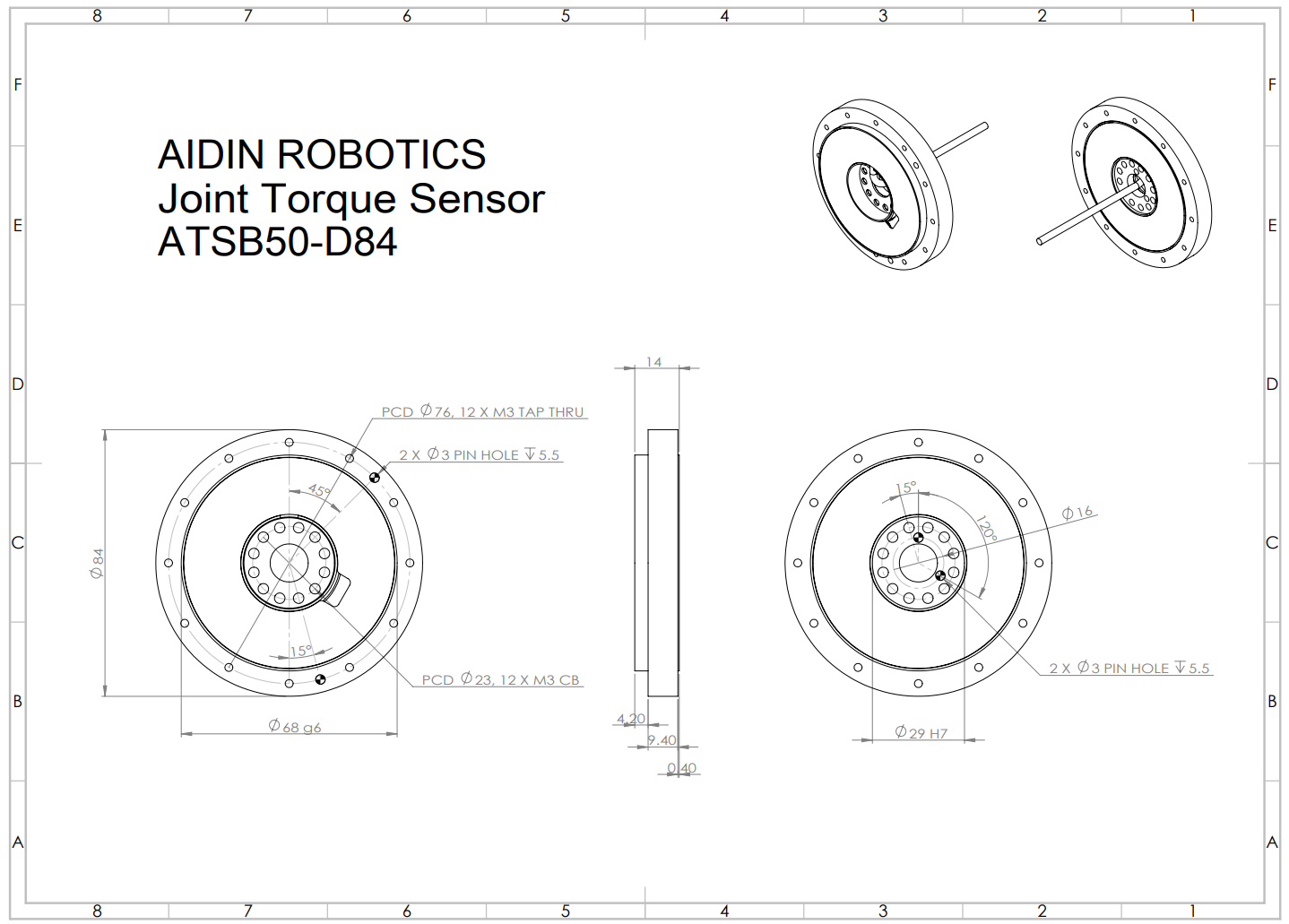
- ATSB100-D100
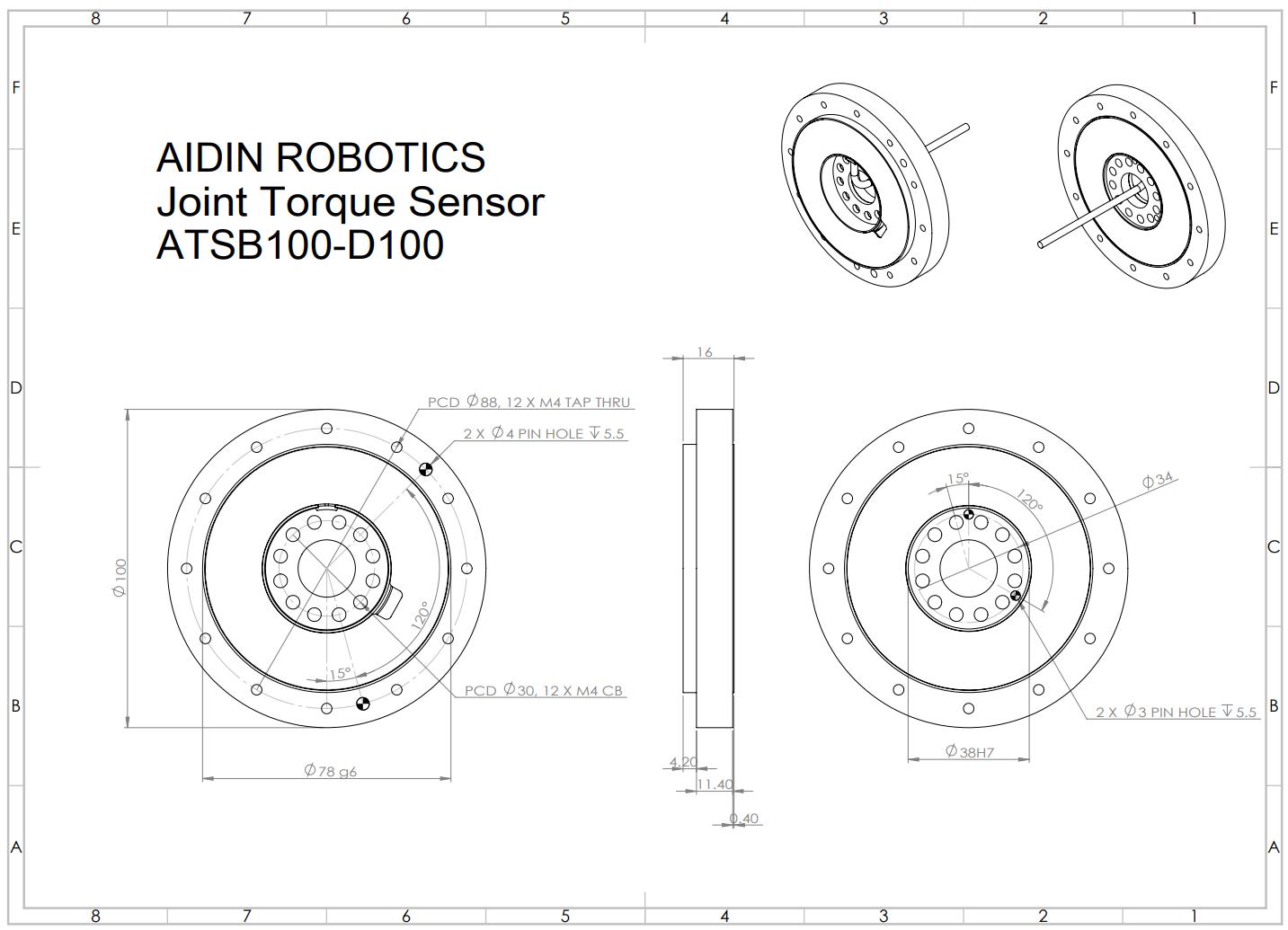
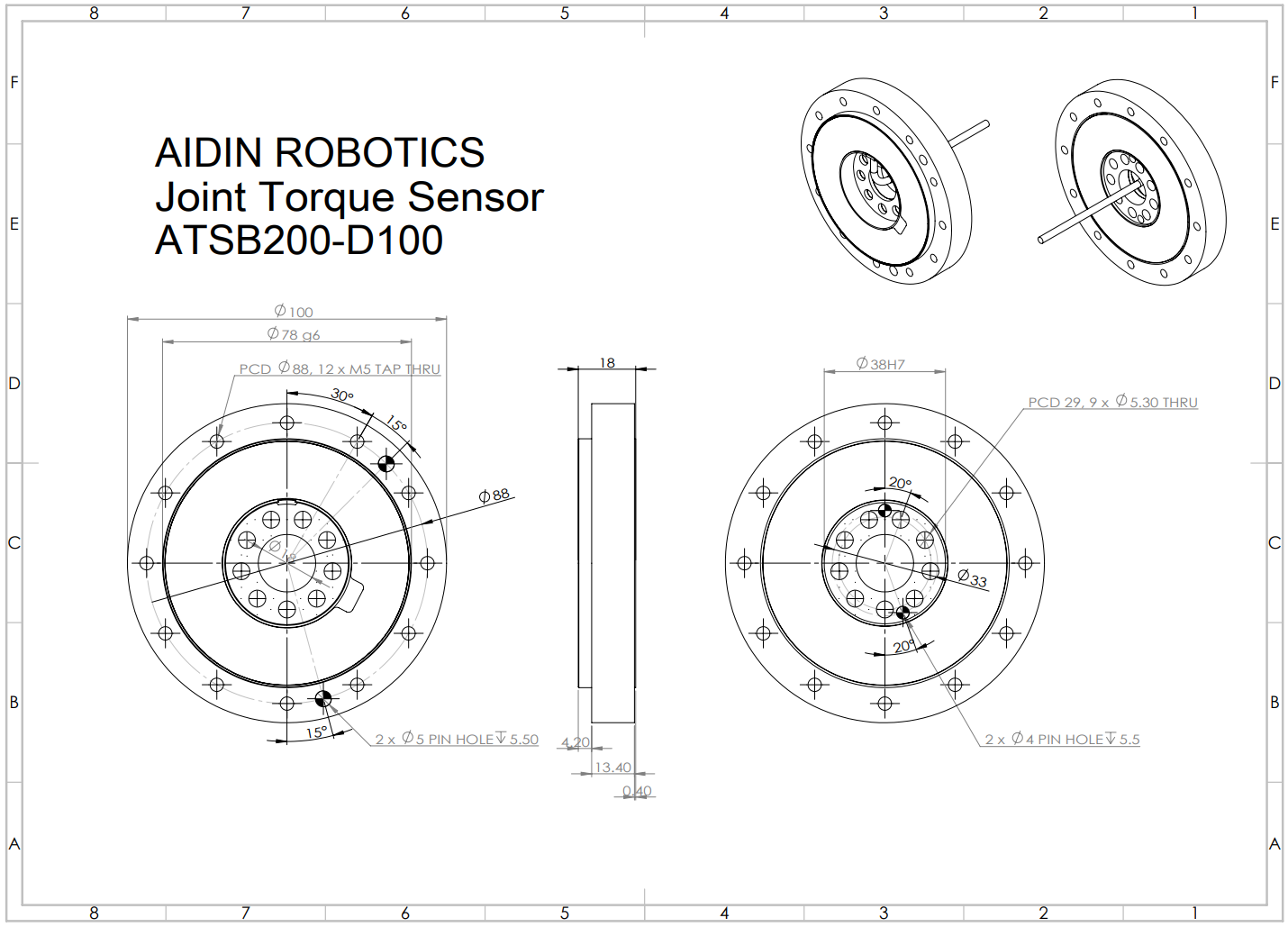
- ATSB200-D100
- ATSB400-D120
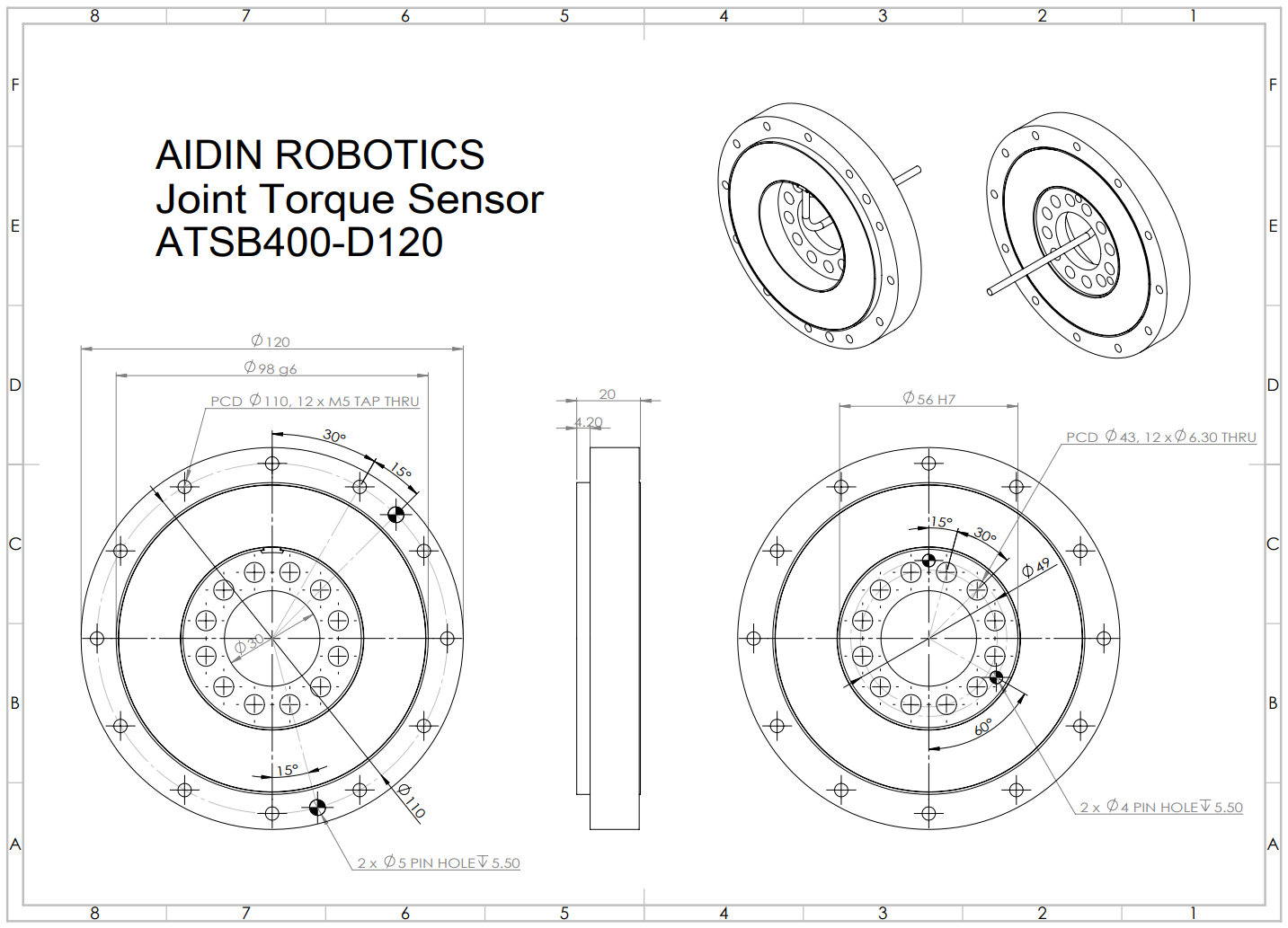
Drawing and CAD files
2.3 Wiring
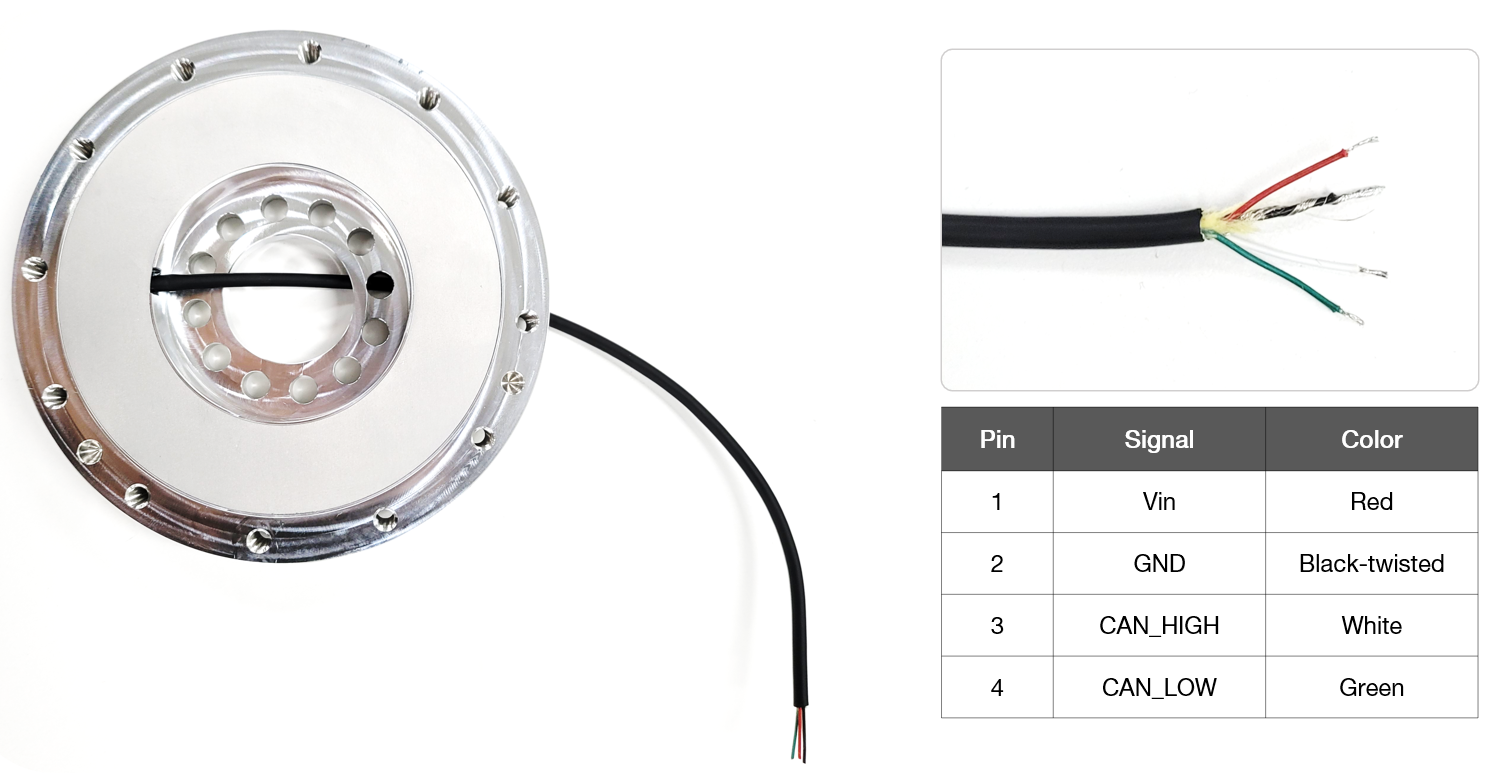
- Pinout: 4 pin (CAN_H, CAN_L, V, GND)
- Apply the appropriate operating voltage (5-10 V) to Vin (red).
- Connect GND (black) and the shield (copper wire).
- A 120 Ω termination resistor is required between CAN_H (white) and CAN_L (green).
2.4 Communication
- CAN protocol
- CAN 2.0A
- Baud rate: 1 Mbps
- Data length: 2 bytes
- Sampling rate: 1 kHz
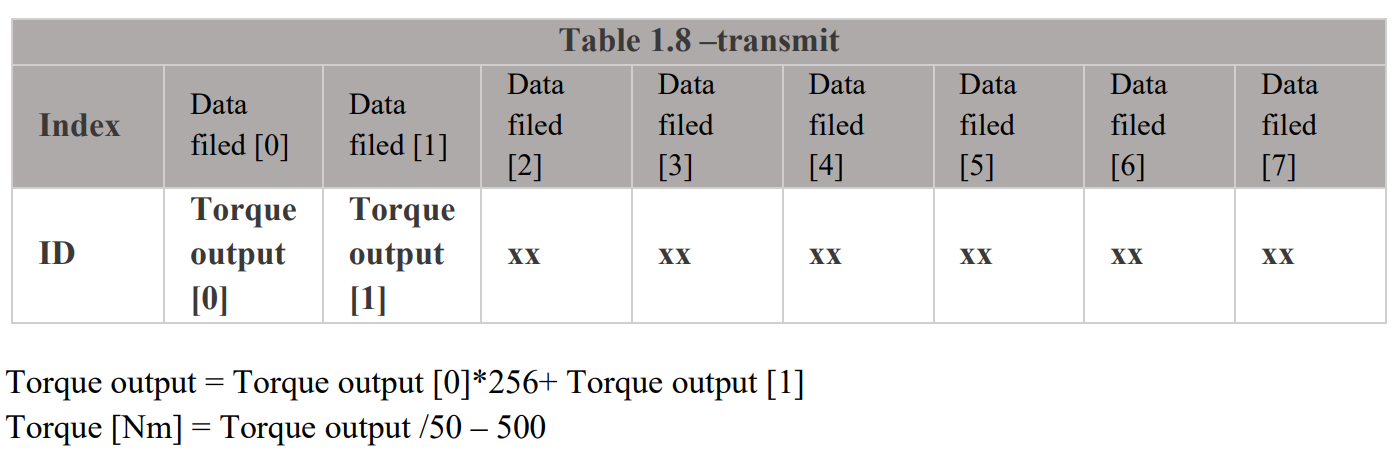
- CAN data output
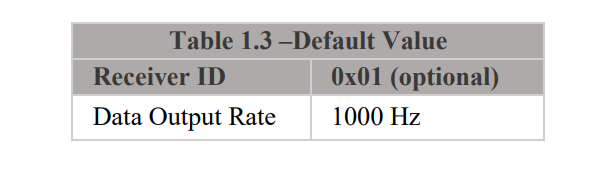
- The default ID is 0x01.
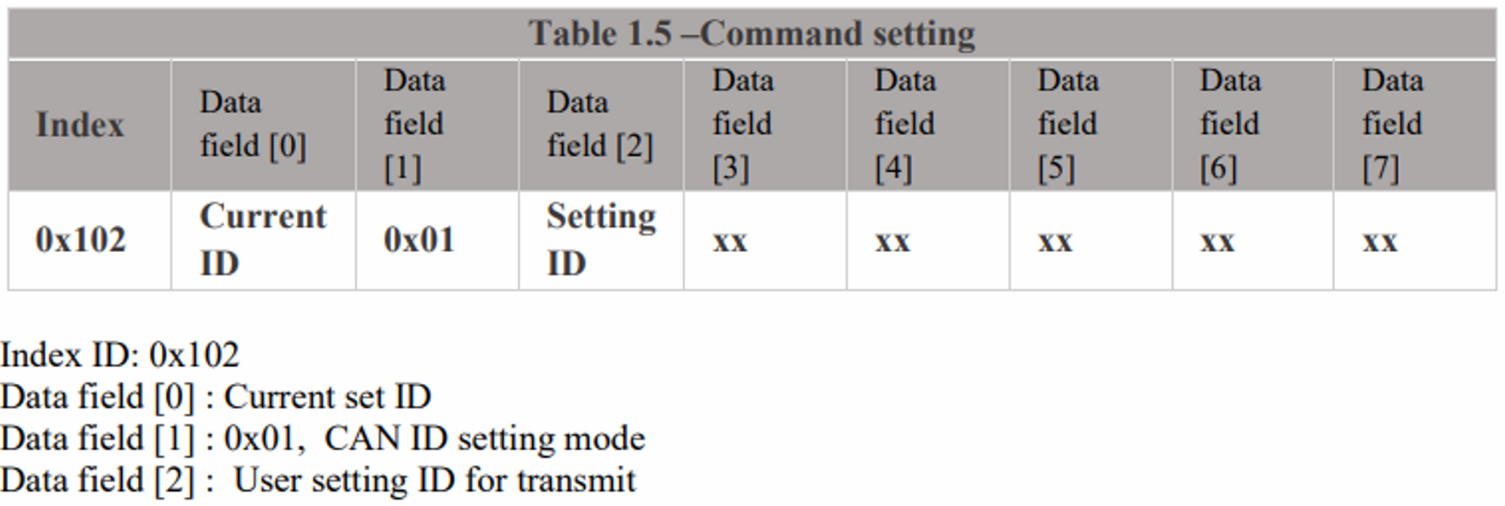
- CAN ID setting mode
- ex) Change ID to 0x0A: ID 0x102, Data 01 01 0A (hexadecimal)
2.5 Sample Program
USB-to-CAN device driver installation
- You can use other CAN-enabled boards, but you must use an IXXAT converter to use the provided sample program.
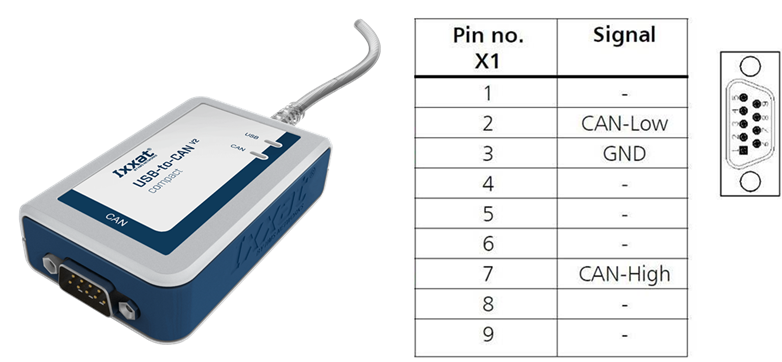
- USB-to-CAN V2 (ixxat.com), used version: 1.01.0281.11001
- Downloads and Documentation for Ixxat Products, VCI V4 - Windows 11, 10, 8, 7 (Driver, canAnalyser-Mini, Manuals, LabVIEW and other add-ons)
[!NOTE] Check VCI V4 during installation and reboot the PC after installation.
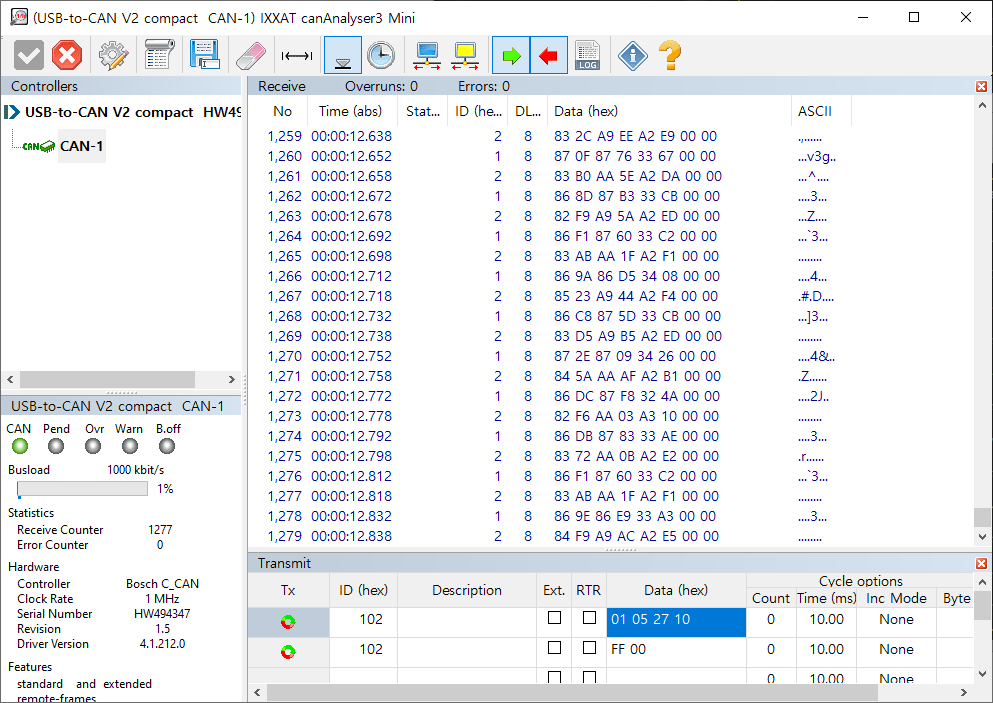
IXXAT CAN monitor
- CanAnalyzer3 Mini: Windows key → IXXAT folder → IXXAT CanAnalyzer3 Mini
Sample program provided by AIDIN ROBOTICS
- Installer: install IXXAT CAN VCI V4 first, then install the installer below.
- Sample program: after connecting the sensor, run ATS_sample_program.exe.
- Program for storing 1 kHz data
- Up to 24 hours of storage
- 4 GB of free memory recommended
- CLEAR: resets the graph history.
- SAVE: saves the graph history to a file.
- ATS_sample_program_v4.1.zip
Pop-up screens when running the sample program
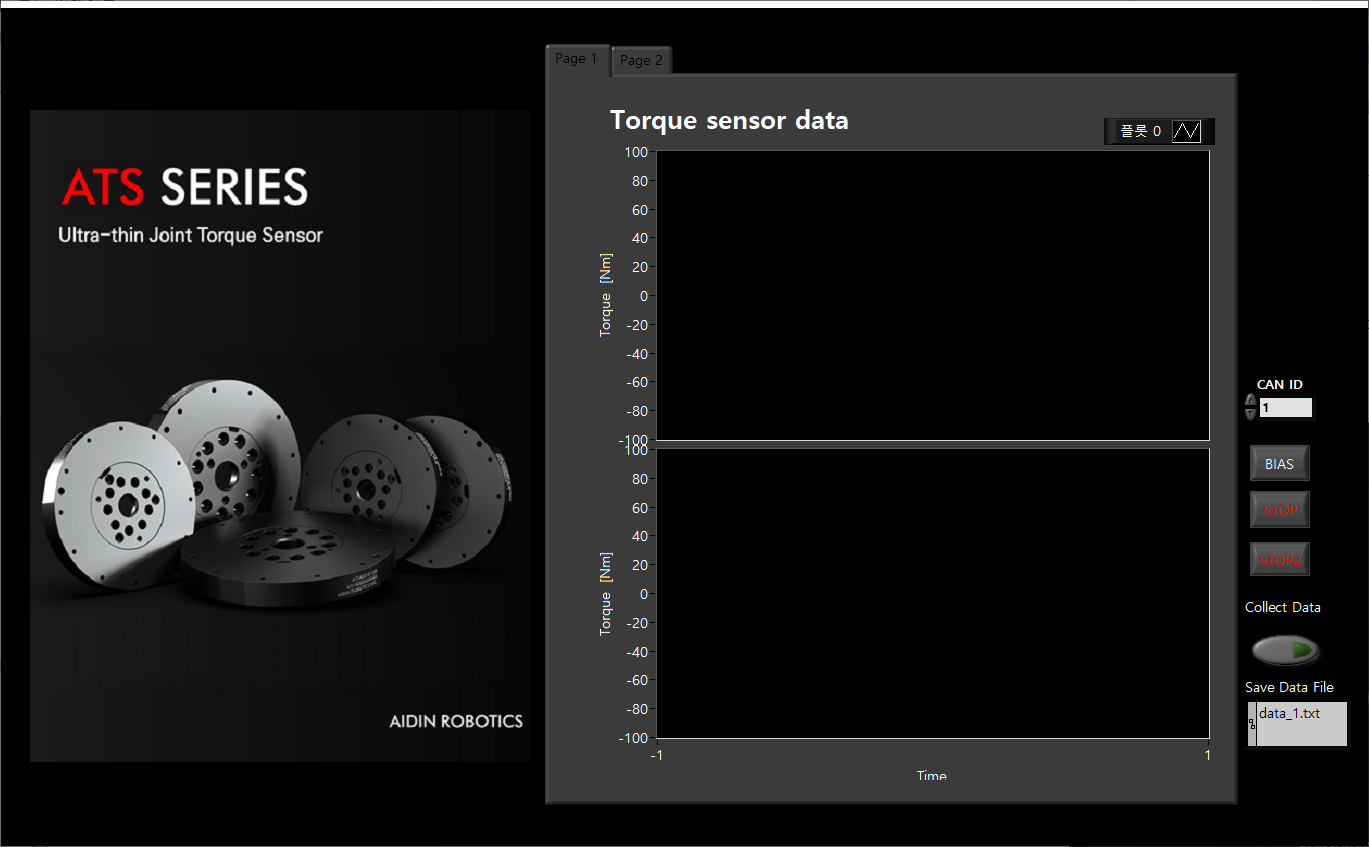
1. Select VCI Device
Select your device. Devices currently connected to the PC are displayed in a list. Click the applicable device and press the OK button.
※ The sample program was created based on IXXAT's USB-to-CAN converter.
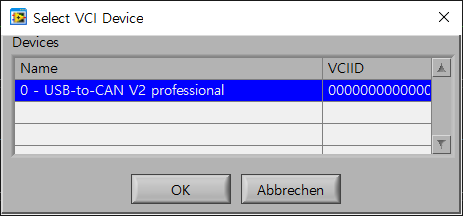
2. Select Controller
The device name selected in the previous step is displayed. Select the controller channel below and press the OK button.

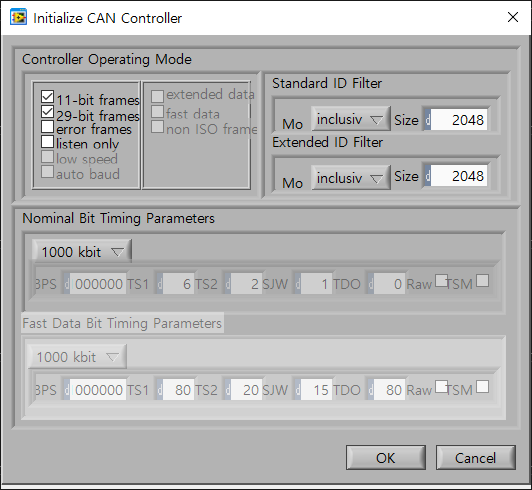
3. Initialize CAN Controller
This step initializes the controller selected in the previous step. Check the frame and baud rate and press the OK button.
Sample program interface description
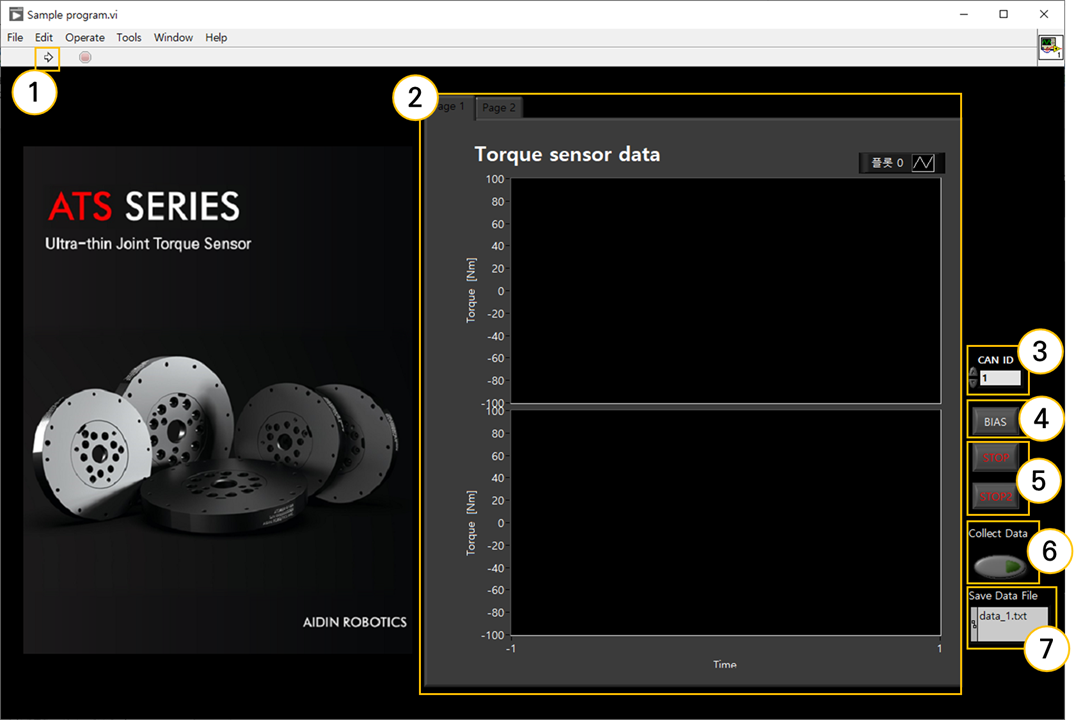
① Program run
Runs the sample program. It runs automatically the first time it is launched; after STOP, press the run button to run it again.
② Graph plot
Displays real-time torque (Tz) data in a graph.
③ CAN ID
Sets the CAN ID of the connected sensor. If there is more than one ID, enter the lowest ID in decimal.
ex) For 0x10(16) and 0x11(17), enter 16.
④ BIAS
Initializes the value to 0 based on the current torque value. By eliminating installation and attachment factors, the desired torque value can be measured.
⑤ STOP
Exits the program. Press both STOP buttons and the program ends 3 seconds later.
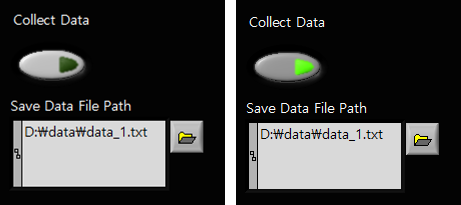
⑥ Collect Data
Saves the torque data log. Please refer to "Save data log" below.
Save data log
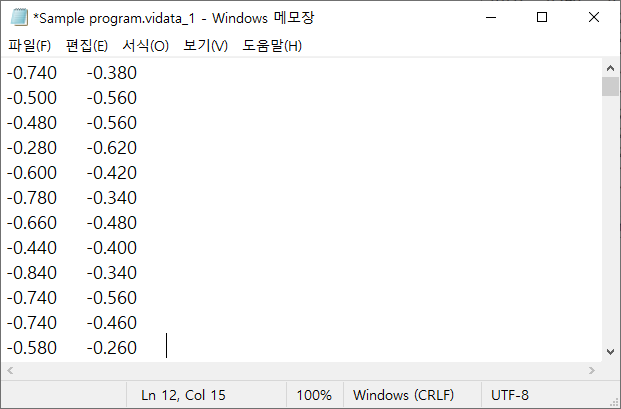
- Set storage directory: the file is saved in the sample program's directory with a time-based file name.
- Data log storage: click the button below Collect Data to start saving. While saving, the button is displayed in a fluorescent color. Press the same button again to stop saving. Data is stored cumulatively in the file, so it is recommended to specify a new file for each save.
- Check data log: open the file in the directory to check the saved torque data. (Unit: Nm)
FAQ
Q. Can you provide bolt and torque wrench information?
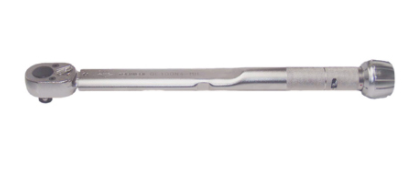
A. Please refer to the tightening torque table in "2.2 Mounting". We recommend SCM bolts (strength class 12.9). Torque wrench examples are the Tohnichi QL-MH series (50QL-MH, 100QL-MH, 225QL-MH, etc.) with a 1/4" hex bit socket.
Q. What does NC mean?
A. NC stands for Not Connected.
Q. What happens if the sensor is used outside the operating temperature range?
A. Temperature changes within the allowable range are compensated by the calibration values. However, using the sensor outside the recommended temperature range distorts the measurements and results in abnormal output values.
Q. Is it possible to develop additional software?
A. Additional software development is available through separate consultation and agreement.
Q. Can I extend the cable?
A. We are not responsible for any problems caused by the use of cables not manufactured by AIDIN ROBOTICS. It is recommended that the cable length be less than 1 m, up to a maximum of 3 m.
Q. Is it okay to disassemble the sensor myself?
A. Disassembling the sensor voids the A/S policy and may cause the sensor calibration values to shift.
Q. What is the waterproof grade?
A. The ATSB series is not waterproof.
Q. Can multiple sensors be used at the same time? How many sensors can be used?
A. Multiple sensors can be connected to a single CAN device by connecting their CAN lines in parallel. To use multiple sensors, each sensor must be assigned a different CAN ID in advance (see "CAN ID setting mode" in 2.4).
Revision History
| Date | Description |
|---|---|
| 2026.04.29 |